




UltraCare
test
ULTRACARE – SUPPORT
WHEN YO NEED IT.
We created UltraCare to give you help with any questions or issues you may have – simple, clear, and focused on your needs.

SMART DIAGNOSTICS TOOL
Designed to last longer, work smarter and deliver the best taste experience so far.
Choose the area where you’re having issues:
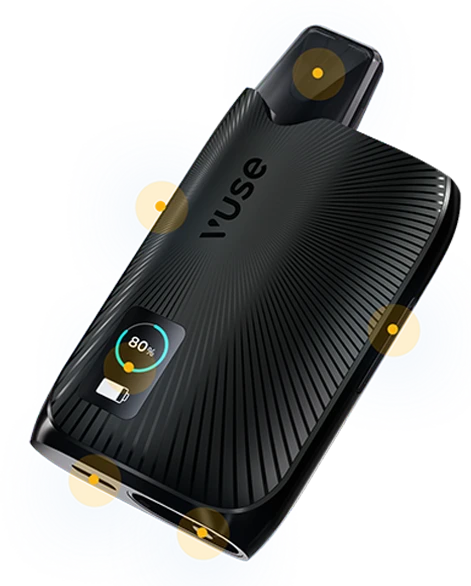
WELCOME

INSERT POD
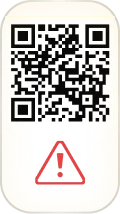
QR CODE

FLAVOUR ANIMATION

FIND MY VAPE
POD RECOGNITION
LIQUID FLAVOUR & NICOTINE STRENGTH

FLAVOUR GROUP PROFILES

LIQUID LEVEL

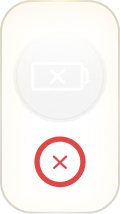
BATTERY LEVEL
CHARGING THE BATTERY
BATTERY CHARGING FAILURE

INTENSITY LEVEL



USAGE REMINDER

LOW POWER MODE

BLUETOOTH PAIRING
FIRMWARE UPDATE

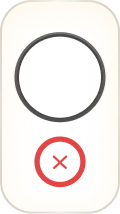
DEVICE LOCKED / UNLOCKED

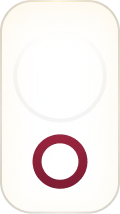

ERROR CODE
FREQUENTLY ASKED
QUESTIONS AND ANSWERS
Here you’ll find answers to common questions about our pods, devices and more
- Device
- Charging
- Pods
- How do I use my Vuse Ultra device?
- How do I use my Vuse Ultra device?
- How do I unlock my Vuse Ultra device if I accidentally locked it?
- Where can I find the battery for the Vuse Ultra device?
- How do I insert the battery into the Vuse Ultra device?
- I inserted the battery correctly, but the device is not working?
- Why is the battery packaged separately from the Vuse Ultra device?
- What should I do if the battery comes loose from the device?
- Can I get a replacement battery?
- How do I dispose of the Vuse Ultra battery at the end of its life?
- What type of battery is in my Vuse Ultra device?
- How do I know when I need to charge my Vuse Ultra device?
- Does the screen drain my battery?
- Why can't I puff when the battery level is low?
- The screen shows nothing when I puff. Is it working?
- Will the screen get scratched?
- Why can't my phone read the QR code?
- Why did the screen dim while charging?
- Why do I see different symbols on the screen with different pods?
- What do the symbols on the screen mean?
- What does 'intensity levels' mean?
- How do I know which intensity level I am on?
- How can I change the intensity level?
- Why did my intensity level change?
Answer
When you take the device out of the box for the first time, insert the battery into the bottom of the device. The VUSE logo on the battery should be facing upwards and the battery will click into place. The device will then start up and
a welcome message will appear on the screen.
We recommend that you charge your device with the supplied charging cable before using it for the first time.
Simply insert a Vuse Ultra Pod or a Vuse Pod into the top of the device. The pod is held in place by magnets and the device will show that the pod has been detected. You can then take your first puff.
For information on charging the device or troubleshooting, please refer to the sections below
Answer
When you take the device out of the box for the first time, insert the battery into the bottom of the device.
The VUSE logo on the battery should face upwards and the battery should click into place. Once inserted, the device starts and displays a welcome message on the screen.
We recommend charging your Vuse Ultra before first use — either with the supplied USB‑C cable or via wireless charging.
Simply insert a Vuse Ultra Pod or Vuse Pod into the top of the device. The magnet keeps the pod in place. The Vuse Ultra will indicate that the pod has been detected. You can now puff.
Information on charging or troubleshooting your device can be found in the following sections.
Answer
If your Vuse Ultra device becomes locked by accident, unlocking it is very simple.
Just press the menu button quickly three times. The device will vibrate and the screen will display the unlock icon to confirm the action.
To lock your device again, simply repeat the same steps.
Answer
The battery for your Vuse Ultra is located in the packaging underneath the device and instruction leaflet.
If the battery appears damaged, do not use it — contact customer service. Use only the battery supplied with your Vuse Ultra.
Answer
Remove the device and battery from the packaging and peel off the protective label from the top of the battery.
Insert the battery with the gold contacts first and the Vuse logo facing upwards. The battery clicks into place and the device starts.
Answer
If the battery does not appear damaged, try charging your device.
If it still doesn’t start, remove the battery and contact customer service.
Answer
The battery is packaged separately to prevent discharge during transport and storage.
Answer
We recommend not removing the battery during normal use to avoid damage.
If the battery accidentally falls out, check it for visible damage before reinserting it.
Answer
If you have problems with the battery, please contact customer service.
Answer
Remove the battery by sliding the latch on the bottom of the device towards the USB‑C port.
The battery can then be removed. Dispose of the battery according to local regulations.
Answer
The Vuse Ultra contains a rechargeable lithium‑ion polymer battery.
Use only the battery provided with your device.
Answer
You can check your battery level at any time by pressing the menu button.
When the battery reaches 30% and then 10%, the device vibrates to remind you to recharge.
If the battery is very low, you cannot puff until you recharge the device.
If the battery is almost at 0%, the device shuts down and the screen will not respond until recharged.
Answer
The screen uses very little power compared to the power required for vapor production.
When the device is not in use, it consumes very little energy.
Answer
When the battery reaches a certain low level, the device will no longer allow you to puff until recharged.
The screen remains active at low battery; sometimes the battery percentage may appear to jump as it approaches this level.
When the battery is almost at 1%, the device shuts down. We recommend keeping your device charged to avoid this.
Answer
Yes, the Vuse Ultra device does not display anything while you puff.
You can check battery level or other information at any time by pressing the buttons.
Answer
The Vuse Ultra screen has a coating that protects against scratches and fingerprints.
Answer
Ensure the screen of your Vuse Ultra and your phone’s camera lens are clean and that no strong reflections are present.
If your phone cannot read the QR code, try using a QR scanner app.
Answer
While charging, the screen dims after 15 seconds to save battery.
When you remove the device from charging, the screen becomes brighter and displays the battery level.
Answer
Vuse Ultra Pods contain a pod recognition chip that allows the device to read and display liquid information.
Vuse Pods can still be used but their liquid details will not appear on the screen.
Answer
Here are examples of the most common symbols on the Vuse Ultra screen and what they mean:
- Battery level
- Charging battery
- Liquid level
- Liquid flavour & nicotine strength
- Device locked/unlocked
- Pod detected
- Intensity level
- Error code
- Bluetooth pairing
- See symbol explanation
Answer
Intensity level refers to the power (in watts) the device applies to the pod to generate vapor.
Higher power uses more battery and produces more vapor.
You can switch between high, medium, and low levels on the device and fine‑tune intensity in the app between 6.5 W and 2.5 W.
- High = 6.5 W
- Medium = 5.5 W
- Low = 4.5 W
- App fine‑tuning = 6.5 W down to 2.5 W
Answer
Press the CloudControl button once to display the current intensity level (high/medium/low).
Answer
Press the CloudControl button once to display the intensity, then press up or down to change it.
Answer
When you insert a Vuse Ultra Pod, the device uses Flavour Autotune to set the recommended intensity.
You can change this level anytime.
The device remembers this preference the next time you use the same flavour.
Answer
When you take the device out of the box for the first time, insert the battery into the bottom of the device. The VUSE logo on the battery should be facing upwards and the battery will click into place. The device will then start up and
a welcome message will appear on the screen.
We recommend that you charge your device with the supplied charging cable before using it for the first time.
Simply insert a Vuse Ultra Pod or a Vuse Pod into the top of the device. The pod is held in place by magnets and the device will show that the pod has been detected. You can then take your first puff.
For information on charging the device or troubleshooting, please refer to the sections below
Answer
When you take the device out of the box for the first time, insert the battery into the bottom of the device.
The VUSE logo on the battery should face upwards and the battery should click into place. Once inserted, the device starts and displays a welcome message on the screen.
We recommend charging your Vuse Ultra before first use — either with the supplied USB‑C cable or via wireless charging.
Simply insert a Vuse Ultra Pod or Vuse Pod into the top of the device. The magnet keeps the pod in place. The Vuse Ultra will indicate that the pod has been detected. You can now puff.
Information on charging or troubleshooting your device can be found in the following sections.
Answer
If your Vuse Ultra device becomes locked by accident, unlocking it is very simple.
Just press the menu button quickly three times. The device will vibrate and the screen will display the unlock icon to confirm the action.
To lock your device again, simply repeat the same steps.
Answer
The battery for your Vuse Ultra is located in the packaging underneath the device and instruction leaflet.
If the battery appears damaged, do not use it — contact customer service. Use only the battery supplied with your Vuse Ultra.
Answer
Remove the device and battery from the packaging and peel off the protective label from the top of the battery.
Insert the battery with the gold contacts first and the Vuse logo facing upwards. The battery clicks into place and the device starts.
Answer
If the battery does not appear damaged, try charging your device.
If it still doesn’t start, remove the battery and contact customer service.
Answer
The battery is packaged separately to prevent discharge during transport and storage.
Answer
We recommend not removing the battery during normal use to avoid damage.
If the battery accidentally falls out, check it for visible damage before reinserting it.
Answer
If you have problems with the battery, please contact customer service.
Answer
Remove the battery by sliding the latch on the bottom of the device towards the USB‑C port.
The battery can then be removed. Dispose of the battery according to local regulations.
Answer
The Vuse Ultra contains a rechargeable lithium‑ion polymer battery.
Use only the battery provided with your device.
Answer
You can check your battery level at any time by pressing the menu button.
When the battery reaches 30% and then 10%, the device vibrates to remind you to recharge.
If the battery is very low, you cannot puff until you recharge the device.
If the battery is almost at 0%, the device shuts down and the screen will not respond until recharged.
Answer
The screen uses very little power compared to the power required for vapor production.
When the device is not in use, it consumes very little energy.
Answer
When the battery reaches a certain low level, the device will no longer allow you to puff until recharged.
The screen remains active at low battery; sometimes the battery percentage may appear to jump as it approaches this level.
When the battery is almost at 1%, the device shuts down. We recommend keeping your device charged to avoid this.
Answer
Yes, the Vuse Ultra device does not display anything while you puff.
You can check battery level or other information at any time by pressing the buttons.
Answer
The Vuse Ultra screen has a coating that protects against scratches and fingerprints.
Answer
Ensure the screen of your Vuse Ultra and your phone’s camera lens are clean and that no strong reflections are present.
If your phone cannot read the QR code, try using a QR scanner app.
Answer
While charging, the screen dims after 15 seconds to save battery.
When you remove the device from charging, the screen becomes brighter and displays the battery level.
Answer
Vuse Ultra Pods contain a pod recognition chip that allows the device to read and display liquid information.
Vuse Pods can still be used but their liquid details will not appear on the screen.
Answer
Here are examples of the most common symbols on the Vuse Ultra screen and what they mean:
- Battery level
- Charging battery
- Liquid level
- Liquid flavour & nicotine strength
- Device locked/unlocked
- Pod detected
- Intensity level
- Error code
- Bluetooth pairing
- See symbol explanation
Answer
Intensity level refers to the power (in watts) the device applies to the pod to generate vapor.
Higher power uses more battery and produces more vapor.
You can switch between high, medium, and low levels on the device and fine‑tune intensity in the app between 6.5 W and 2.5 W.
- High = 6.5 W
- Medium = 5.5 W
- Low = 4.5 W
- App fine‑tuning = 6.5 W down to 2.5 W
Answer
Press the CloudControl button once to display the current intensity level (high/medium/low).
Answer
Press the CloudControl button once to display the intensity, then press up or down to change it.
Answer
When you insert a Vuse Ultra Pod, the device uses Flavour Autotune to set the recommended intensity.
You can change this level anytime.
The device remembers this preference the next time you use the same flavour.
- How do I charge my Vuse Ultra device?
- How do I know if my Vuse Ultra device is charging?
- How long does it take to charge the Vuse Ultra device?
- Can I leave my Vuse Ultra device charging overnight?
- How long does the battery last?
- Which wireless charger can I use with my Vuse Ultra device?
- My device vibrates when I place it on the wireless charging pad
- Why does my battery level change when I'm not using the device?
Answer
You can charge your Vuse Ultra using the supplied USB‑C cable or a wireless charging pad.
To charge via USB‑C, connect the cable to the bottom port and a compatible adapter.
To charge wirelessly, place the device (screen facing up) centered on the wireless charger.
Answer
When charging is detected, the battery icon appears and the device vibrates.
The screen dims after 15 seconds but continues to show the increasing percentage.
When fully charged, charging stops automatically and the screen turns off.
Answer
USB‑C charging:
- 20 minutes to reach 80%
- Under 40 minutes for a full charge
Wireless charging:
- Under 70 minutes to reach 80%
- Under 90 minutes for full charge
- Only charge using a 5 VDC, 2.0 A SELV power supply.
- Lower outputs will result in slower charging.
Answer
USB‑C charging to 80% takes about 20 minutes.
Do not leave the device unattended while charging.
Answer
A fully charged Vuse Ultra device can deliver up to 1,000 puffs at low intensity.
(Results vary based on use and settings.)
Answer
Your Vuse Ultra is QI‑certified and compatible with Qi‑certified wireless chargers.
For best performance, use a Qi‑certified charger.
Answer
The device vibrates when properly charging on a wireless pad.
Some chargers may cause additional vibration when the battery is low.
Answer
If you do not use the device for a long time, the battery level slowly decreases.
Removing and reinserting the battery at low charge may cause level fluctuations.
Recharge the device and avoid removing the battery during normal use.
Answer
You can charge your Vuse Ultra using the supplied USB‑C cable or a wireless charging pad.
To charge via USB‑C, connect the cable to the bottom port and a compatible adapter.
To charge wirelessly, place the device (screen facing up) centered on the wireless charger.
Answer
When charging is detected, the battery icon appears and the device vibrates.
The screen dims after 15 seconds but continues to show the increasing percentage.
When fully charged, charging stops automatically and the screen turns off.
Answer
USB‑C charging:
- 20 minutes to reach 80%
- Under 40 minutes for a full charge
Wireless charging:
- Under 70 minutes to reach 80%
- Under 90 minutes for full charge
- Only charge using a 5 VDC, 2.0 A SELV power supply.
- Lower outputs will result in slower charging.
Answer
USB‑C charging to 80% takes about 20 minutes.
Do not leave the device unattended while charging.
Answer
A fully charged Vuse Ultra device can deliver up to 1,000 puffs at low intensity.
(Results vary based on use and settings.)
Answer
Your Vuse Ultra is QI‑certified and compatible with Qi‑certified wireless chargers.
For best performance, use a Qi‑certified charger.
Answer
The device vibrates when properly charging on a wireless pad.
Some chargers may cause additional vibration when the battery is low.
Answer
If you do not use the device for a long time, the battery level slowly decreases.
Removing and reinserting the battery at low charge may cause level fluctuations.
Recharge the device and avoid removing the battery during normal use.
- Can I use Vuse Pods with the Vuse Ultra device?
- What is the difference between a Vuse Pod and a Vuse Ultra Pod?
- When should I replace my Vuse Ultra Pod?
- What does pod recognition mean?
- Why is my device not detecting the pod?
- How do I check the liquid level?
- Why is the liquid level on the screen different from the pod?
- How do I know the pods flavour or nicotine strength?
- Is the liquid level updated if I insert a partially used Ultra Pod into another Vuse Ultra device?
- How were the recommended intensity levels determined?
- How long does a Vuse Ultra Pod last (puffs)?
- How much nicotine is in a Vuse Ultra Pod?
- Why do Vuse Pods make a noise when I vape?
Answer
You can use Vuse Pods or Vuse Ultra Pods with the Ultra device.
Only Ultra Pods display liquid level, flavour, and nicotine information.
Answer
Vuse Ultra Pods contain a smart chip that the device can read.
They function like regular Vuse Pods but feature a silver logo for identification.
Answer
Replace your pod when it no longer produces vapor or when flavour/quality decreases.
Answer
Ultra Pods contain a smart chip with liquid and manufacturing data that appears on your device.
Answer
The pod or device may be faulty, or the pod may have been inserted too quickly.
Remove and clean both pod and device.
Try another authentic Vuse pod.
If issues persist, contact customer service.
Answer
You can check liquid level by double‑pressing the menu button (battery first, then liquid).
You can also remove the pod to view the liquid chamber.
Answer
The liquid level on the screen is an estimate influenced by puffing style, flavour, and temperature.
Pods used in non‑Ultra devices will not update liquid level until used again in an Ultra device.
Answer
Yes, a partially used Ultra Pod shows the correct level when placed in another Ultra device.
Answer
Yes, a partially used Ultra Pod shows the correct level when placed in another Ultra device.
Answer
Recommended intensity levels were selected by internal experts.
You can adjust them anytime on the device .
Answer
Each Ultra Pod contains 2 ml of e‑liquid providing up to 1,000 puffs at low intensity.
Actual puffs vary by device settings and usage patterns.
Answer
Each Ultra Pod contains up to 20 mg/ml of nicotine (40 mg total).
Answer
A bubbling sound may occur in new pods — it is part of the advanced heating technology.
This design provides improved vapor production and a more satisfying experience.
Answer
You can use Vuse Pods or Vuse Ultra Pods with the Ultra device.
Only Ultra Pods display liquid level, flavour, and nicotine information.
Answer
Vuse Ultra Pods contain a smart chip that the device can read.
They function like regular Vuse Pods but feature a silver logo for identification.
Answer
Replace your pod when it no longer produces vapor or when flavour/quality decreases.
Answer
Ultra Pods contain a smart chip with liquid and manufacturing data that appears on your device.
Answer
The pod or device may be faulty, or the pod may have been inserted too quickly.
Remove and clean both pod and device.
Try another authentic Vuse pod.
If issues persist, contact customer service.
Answer
You can check liquid level by double‑pressing the menu button (battery first, then liquid).
You can also remove the pod to view the liquid chamber.
Answer
The liquid level on the screen is an estimate influenced by puffing style, flavour, and temperature.
Pods used in non‑Ultra devices will not update liquid level until used again in an Ultra device.
Answer
Yes, a partially used Ultra Pod shows the correct level when placed in another Ultra device.
Answer
Yes, a partially used Ultra Pod shows the correct level when placed in another Ultra device.
Answer
Recommended intensity levels were selected by internal experts.
You can adjust them anytime on the device .
Answer
Each Ultra Pod contains 2 ml of e‑liquid providing up to 1,000 puffs at low intensity.
Actual puffs vary by device settings and usage patterns.
Answer
Each Ultra Pod contains up to 20 mg/ml of nicotine (40 mg total).
Answer
A bubbling sound may occur in new pods — it is part of the advanced heating technology.
This design provides improved vapor production and a more satisfying experience.