What issue are you experiencing with the charging?
Solution
You can check your battery level at any time by tapping the menu button. If your battery level is very low, you will no longer be able to draw on the pod.
Solution
Yes, you can enable the power‑saving mode of your Ultra through the app. In the settings, you can also choose to have power‑saving mode activate automatically when the device reaches a certain battery level.
Solution
- You can charge your Vuse Ultra either with the supplied USB‑C cable or with a wireless charging pad.
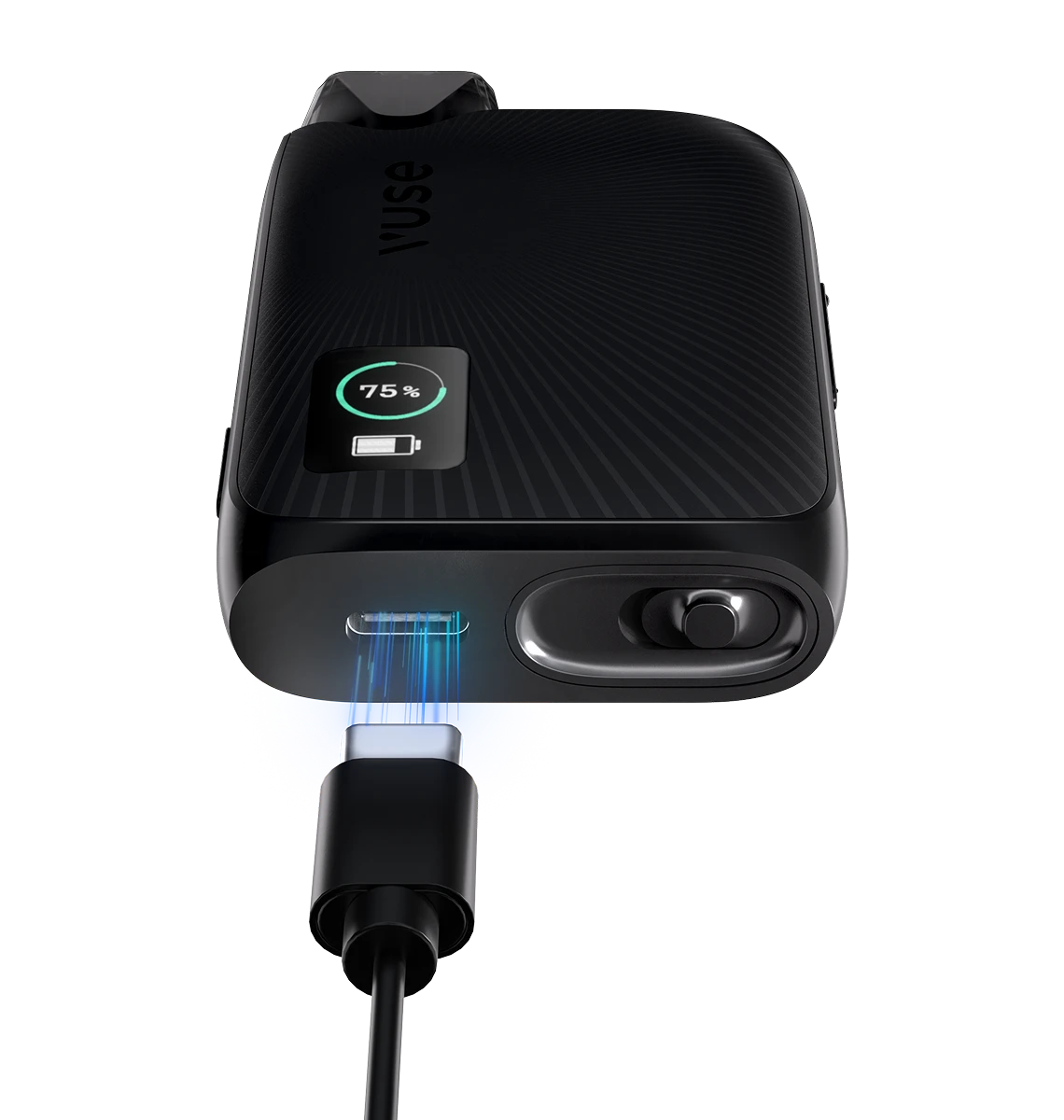
- To charge via USB‑C, simply plug the supplied cable into the charging port at the bottom of the device and connect it to a suitable power source.
- To charge wirelessly, place the device (with the screen facing up) in the center of the wireless charging pad.
Solution
- When the device is charging correctly, the battery charging icon (battery symbol with lightning bolt) appears on the screen and the device vibrates.
- The screen dims after 15 seconds of charging, but it continues to show the battery percentage, which increases as the device charges. When fully charged, charging stops automatically and the screen turns off.
Solution
- When you enable power‑saving mode in the app, the device sets the intensity to “Low” and dims the screen to preserve battery life.
- You can set the power‑saving mode to activate automatically when the device reaches a certain battery level.
- You can always increase the intensity on the device and disable power‑saving mode.
Solution
- The device vibrates when it is charging correctly. With some wireless chargers, the device may additionally vibrate when the battery level is low.
- We recommend using a Qi‑certified wireless charger.
Solution
- If you don’t use your device for an extended period without charging it, the battery level will slowly drop. When it is close to 0%, it turns off to protect the battery.
- If you remove and reinsert the battery when the level is low, the battery indicator may change. We recommend charging the device and not removing the battery during normal use.
Solution
When the battery level reaches a certain point, the device will not allow you to draw until it is recharged. The screen remains active at this low level; sometimes the battery percentage may appear to jump as it approaches this threshold. When the battery level is close to 1%, the device turns off. We recommend keeping your device charged to avoid this.
Solution
- The device has over‑ and undervoltage protection as well as charging‑temperature protection. Make sure you are using the supplied USB‑C cable and that it is connected to an SELV power circuit with 5 VDC, 2.0 A. Always charge your device at ambient temperatures between 15 and 25 °C.
- If the device detects that it is too hot or too cold while charging, it will display an error code and stop charging.If you are charging with a wireless pad, ensure that the charger is Qi‑certified.
If the problem persists, please contact customer service.